
Answering a chat
Open a conversation, write a reply, and know whether it reaches the customer on your website or as a text message.
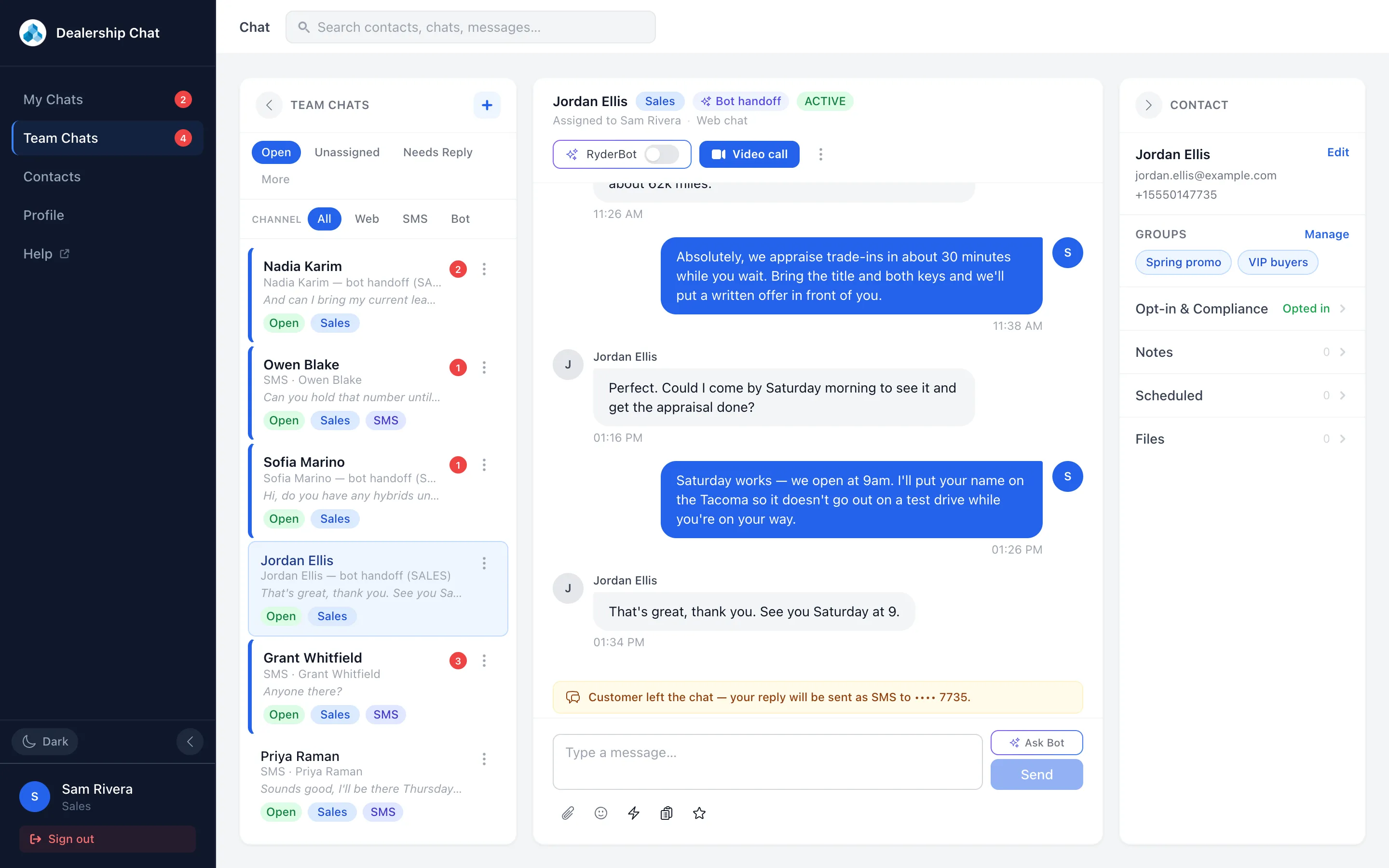
Everything a customer sends you arrives in the same place: chats started on your website, texts to the dealership’s number, and conversations handed over by RyderBot. If you work in Sales, Service or Parts you see your own department’s conversations. Managers and admins see every department.
Open a conversation and reply
- Choose My Chats or Team Chats in the left sidebar.
- Choose a conversation in the list. The middle of the screen fills with the whole history, oldest at the top.
- Click into the box that reads Type a message… and write your reply.
- Press Enter to send. Shift+Enter starts a new line instead. The Send button on the right does the same as Enter.
Your message appears at the right of the transcript straight away, grayed out and marked Sending… until the server confirms it. On a phone or a tablet the list is replaced by the conversation — the arrow at the top left takes you back.
Know where your reply is going
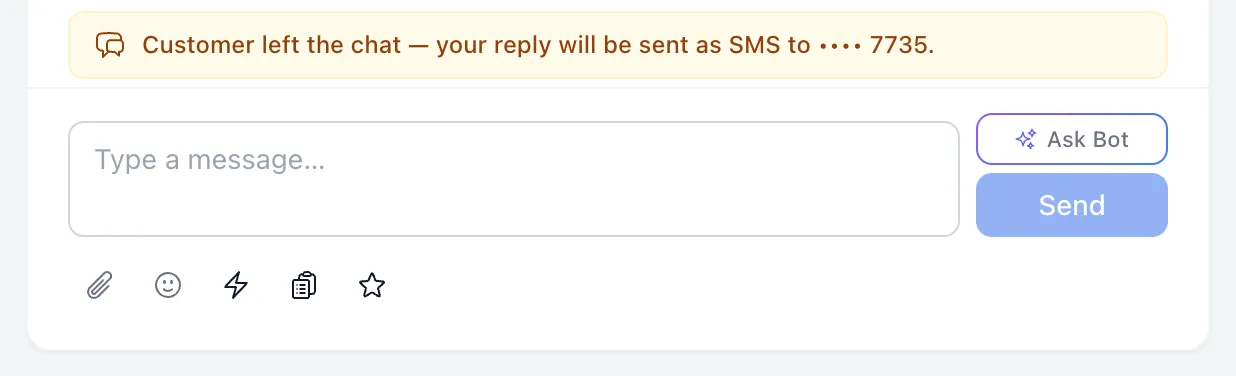
A conversation can reach the customer in the browser or as a text message, and the strip above the message box tells you which:
| What the strip says | What happens when you send |
|---|---|
| Nothing at all | The customer has your website chat open and reads your reply there. |
| SMS conversation — your replies are texted to •••• 1234. | Every reply goes out as a text message. |
| Customer left the chat — your reply will be sent as SMS to •••• 1234. | They closed the browser, so the reply follows them by text. |
| Customer left the chat and has no phone on file — they won’t receive replies until they return. | Nothing reaches them. Write the reply anyway; they see it if they come back. |
A message that went out as a text is tagged SMS under the bubble once it has been sent.
Sign your reply
The last button in the row under the message box adds your signature to the message you are about to send. Hover it to see whether it reads Signature: ON or Signature: OFF. It switches itself back off after each message, so signing is a decision you make once per message.
The button only appears once you have written a signature under Profile. The other buttons in that row attach a file, add an emoji, insert a saved reply, send a form or ask for a review — each has its own article.
Good to know
- A message can be 4,000 characters long. The box stops accepting text at that point.
- Anyone else with the conversation open sees three bouncing dots while you type, and they stop about two seconds after you stop. You see the same dots when they type.
- Scroll up in a long conversation and older messages load as you reach the top. Your place on screen is kept, so you don’t get thrown back to the newest message.
- The conversation you have open follows you between My Chats and Team Chats — switching lists doesn’t close it.
- Links and bold text in a message are shown properly, so a link the customer sends is clickable.
- The right-hand Contact column belongs to the customer, not the conversation: their phone, email, groups, notes and files. On a narrow screen it is behind the info button in the conversation header.
If something goes wrong
| What you see | What it means | What to do |
|---|---|---|
| A warning bubble reading “Send timed out — check your connection and try again” | Your message never reached the server. | Check your internet, then copy the text into a new message and send it again. |
| A warning bubble reading “Not connected to server. Please refresh and try again.” | The browser lost its live connection. | Reload the page. Anything sent to you while you were away appears when the conversation reopens. |
| This thread is closed. | The conversation was marked resolved, so there is no message box. | Nobody on staff can reopen it — only a reply from the customer brings it back. |
| SMS conversation, but no phone number is on file for this contact. | The conversation came in by text but the number never got saved. | Add the number under Contact → Edit so replies can go out. |
| Your reply never shows the SMS tag | The contact opted out of texts, is blocked, or has no number. | Open Contact → Opt-in & Compliance to see which one it is. |