
Turn on browser notifications
Get an alert on this screen when a new chat or message comes in, even when the dashboard tab isn't open.
Browser notifications pop up on your computer the way any other app’s notifications do, so you catch a new chat or message without having the dashboard tab open and in front of you. Any signed-in staff member can turn them on. They run on Chrome, Edge, Firefox, and Safari 16 or newer.
Turn them on from the banner
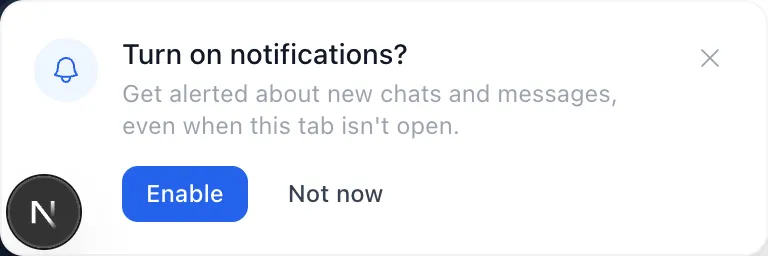
Until you turn this on (or say Not now), a card appears in the bottom-left corner of the screen when you sign in, asking Turn on notifications?
- Choose Enable.
- Your browser asks whether to allow notifications — usually a small prompt near the address bar. Choose Allow.
That’s it. Choose Not now to dismiss the card instead; it won’t ask again after that.
Turn them on from Settings
If you dismissed the card, or want to check whether they’re already on:
- Choose Profile in the sidebar.
- Choose the Notifications tab.
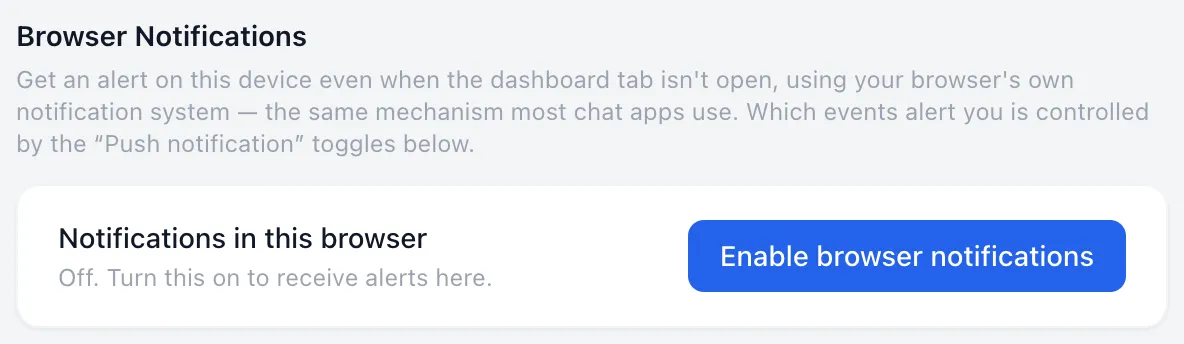
- Under Browser Notifications, choose Enable browser notifications.
- Allow the permission prompt your browser shows.
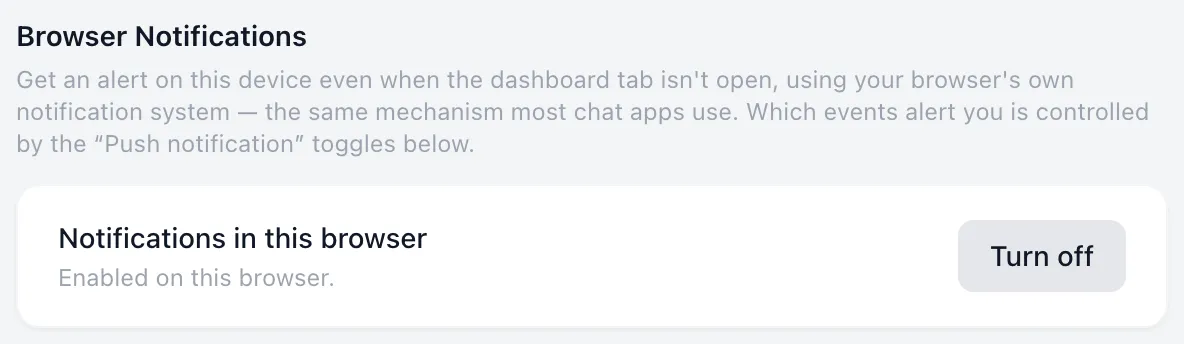
The line under Notifications in this browser now reads Enabled on this browser., and the button changes to Turn off.
If nothing visibly happens when you choose Enable browser notifications, look at the address bar — some browsers show a small icon there instead of a popup. See Browser notifications aren’t showing up if you’re not sure what you’re looking at.
Turn them off
Go back to Profile → Notifications and choose Turn off under Browser Notifications. You stop getting alerts on this browser immediately; nothing changes for any other device you’re signed in on.
Good to know
- This is per browser, not per account. Turning it on at the front desk doesn’t turn it on for your phone or your computer at home — each one needs its own one-time Enable. The other direction also holds: if it’s already on in a browser and a different person signs in there, it starts alerting them too, with no extra step. Worth remembering on a shared computer.
- Which events actually alert you is set separately, in the Push notification on new message, Push notification on assignment, and Unassigned chat alert switches further down the same Notifications tab — all on by default. Turning browser notifications on here doesn’t change those; it’s what lets any of them reach this screen.
- On an iPhone or iPad, Safari can only send notifications to a site that’s been added to the Home Screen (Share → Add to Home Screen) — a regular Safari tab can’t receive them at all. If you’re using a phone for work, the phone app already has its own notifications and is the more reliable option there.
- Closing the tab is fine. Signing all the way out of your browser, clearing its site data, or uninstalling it turns notifications off, the same as it would for any other site.
If something goes wrong
| What you see | What it means | What to do |
|---|---|---|
| Not supported in this browser. Try an up-to-date Chrome, Firefox, Edge, or Safari. | This browser or version can’t do this. | Switch browsers, or update the one you’re using. |
| Blocked. Allow notifications for this site in your browser settings, then reload the page. | You (or someone else on this computer) chose Block at some point. Browsers don’t ask again on their own after that. | See Browser notifications aren’t showing up to undo the block. |
| The Enable browser notifications button spins and nothing changes | The permission prompt may be waiting somewhere you’re not looking, or something blocked it. | See Browser notifications aren’t showing up. |