
Claiming and assigning a chat
Take an unassigned conversation for yourself, hand one to a colleague, or reassign a batch of them at once.
Every conversation is either assigned to one person or sitting in the department’s shared pool. Assigned conversations show up in that person’s My Chats; unassigned ones wait in Team Chats for someone to pick them up.
Claim a conversation for yourself
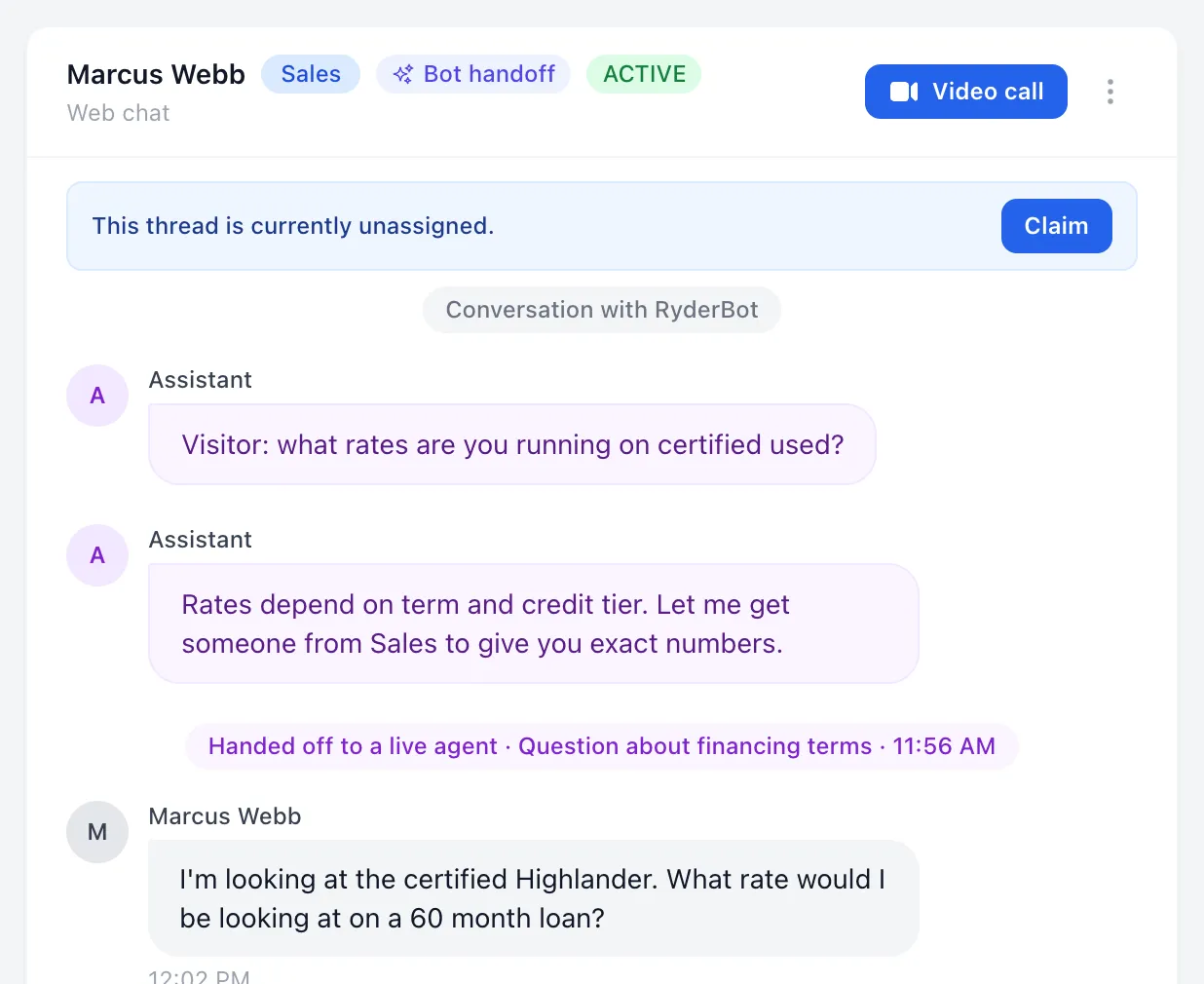
Open an unassigned conversation and a blue strip appears above the transcript: This thread is currently unassigned.
- Choose Claim at the right of the strip.
- Your name appears under the customer’s name in the header as Assigned to …, and the conversation moves into your My Chats.
Anyone in the right department can claim. If a colleague got there a second before you, the claim fails with Thread was just claimed by someone else — refresh and check who has it now. A closed conversation can’t be claimed at all.
Why some chats are already assigned
New conversations are handed out in turn to agents who are signed in, during the hours your dealership is open. Someone who is not signed in is skipped, and outside opening hours nothing is auto-assigned — those conversations land in the pool for whoever picks them up. Managers and admins are never in the rotation.
A conversation that starts as a text message to the dealership’s number works differently: it always lands in Sales, unassigned, whatever time it is. Somebody has to claim it or a manager has to move it.
If you use the phone app, an assignment sends you an alert reading Chat assigned to you. You can turn that off under Profile → Notifications, where it is called Push notification on assignment.
Assign a conversation to someone else
Managers and admins can hand a conversation to any member of the dealership.
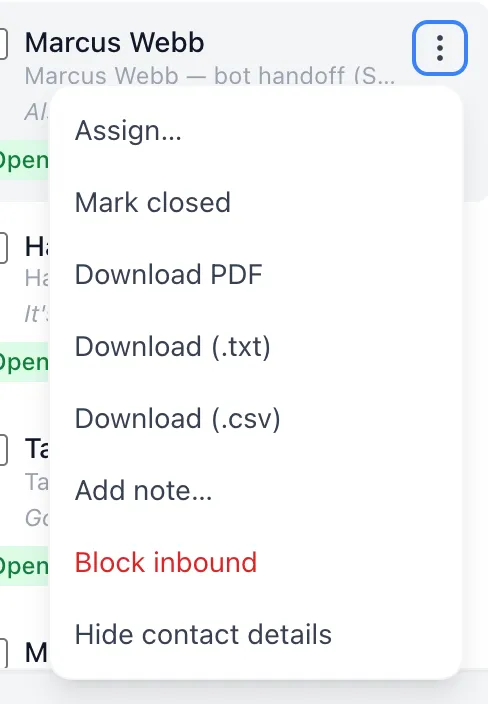
- In the list, choose the three-dot button on the conversation’s row.
- Choose Assign….
- Pick a person from Assign to. The list shows each name with their department. — Unassigned — puts it back in the shared pool.
- Choose Assign.
Reassign several at once
Managers and admins get a checkbox on every row in the list.
- Tick the conversations you want. A blue bar appears at the top reading 3 selected.
- Choose Assign, pick the person, and choose Assign again.
- Clear drops the selection without doing anything.
The same bar also has Close and Archive, and Delete for admins. Changing the filter or switching between My Chats and Team Chats clears the ticks.
Good to know
- Assigning does not tell the customer anything. Nothing appears in the transcript.
- The person you assign to gets the push alert; a bulk assignment deliberately stays quiet, so nobody gets twenty notifications at once.
- Assigning someone from another department does not move the conversation to that department — use Transfer chat for that.
- An agent can’t reassign a conversation, not even one of their own. Ask a manager.
If something goes wrong
| What you see | What it means | What to do |
|---|---|---|
| Thread is already assigned | Someone claimed it while you had it open. | The header shows who has it. Ask them, or ask a manager to reassign it. |
| Cannot claim a closed thread | The conversation was marked resolved. | Nothing to claim. It reopens by itself if the customer writes again. |
| Claim does nothing and an error appears | The conversation belongs to another department. | Only that department, or a manager, can take it. |
| Failed to assign | The person you picked is not part of this dealership. | Reload the page and pick again from the refreshed list. |