
Taking over a chat from RyderBot
Watch a website visitor talking to RyderBot, drop in one message, or step in and finish the conversation yourself.
While a visitor is chatting with RyderBot on your website, that conversation is already visible to you. It sits in Team Chats with a purple Bot tag, alongside the real conversations, so you can see what people are asking before anyone hands off.
Bot chats never appear in My Chats — nobody owns them until someone steps in. If you work in one department you see the ones RyderBot has worked out belong to you, plus the ones it hasn’t placed yet.
Watch one
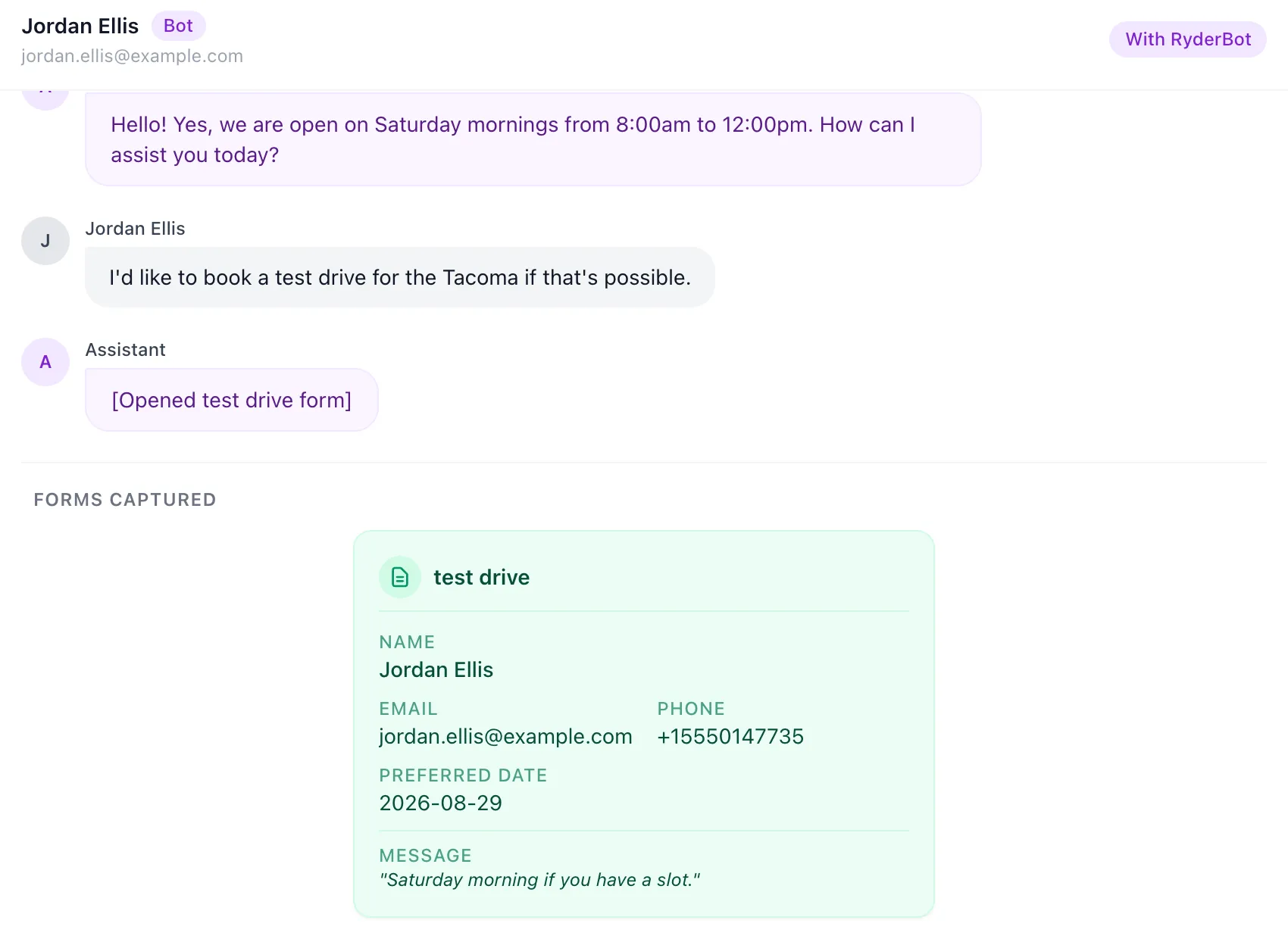
Choose a row with the Bot tag, or set the Channel filter to Bot to see nothing else. The conversation opens read-only, marked With RyderBot in the top right corner.
Anything the visitor has already filled in on the website appears at the bottom under Forms Captured — a test drive request, a contact form — with the details they gave. Vehicles they asked about appear as cards inside the conversation.
The list refreshes itself every few seconds, so a new visitor turns up without reloading.
Say one thing without taking over
Use this when the bot is doing fine and you only want to add a fact.
- Write in the box marked Send a message without taking over….
- Choose Send — the grey button.
Your message reaches the visitor and RyderBot carries on answering them afterwards, exactly as the note under the box says: RyderBot keeps answering the visitor automatically. Use Live Chat to take over the conversation instead.
Take the conversation over
- Choose Live Chat — the blue button to the right of Send.
- Wait while it reads Connecting….
- The screen switches to a normal conversation, assigned to you, with everything the visitor said to RyderBot already in the transcript.
From here it behaves like any other chat: files, saved replies, forms and transfers all work. RyderBot stops answering this visitor for good.

Good to know
- Taking over assigns the conversation to you automatically. If it was already claimed by someone else it stays with them, and you can claim it from the conversation itself.
- You can’t attach a file to a bot conversation. Emoji, saved replies and your signature all work, but a saved reply that would normally fill in the customer’s name leaves it out — there is no contact record on a bot chat yet.
- A visitor with no name shows as Anonymous visitor until they give one.
- The purple Bot tag disappears once the conversation becomes a real one.
If something goes wrong
| What you see | What it means | What to do |
|---|---|---|
| This conversation has ended | The visitor closed the page, or somebody else took it over first. | Choose Back to inbox. If it was taken over, it is now a normal conversation in the list. |
| Couldn’t load this conversation. | The bot service didn’t answer. | Choose Retry. If it keeps failing, tell your manager. |
| Bot conversations are unavailable right now. at the top of the list | The bot service is unreachable, so live visitors can’t be listed. | Your normal conversations are unaffected. Keep working and check again shortly. |
| Takeover failed | The session was gone by the time you chose Live Chat. | Go back to the inbox and look for the visitor under the Open filter — someone may already have it. |
| The Bot filter shows nothing | Nobody is chatting with RyderBot at this moment. | The list says so: No one is chatting with the bot right now. |