
Contact groups
Build your own lists of customers — a model launch, a service reminder, last month's leads — and put people in them.
Groups are lists you build by hand, under the Segments list on the Contacts page. Use them for anything the ready-made segments can’t express: everyone who asked about the new Street Glide, everyone due for a service, the leads from last weekend’s event.
Any member of staff can put a contact into a group or take them out. Creating, renaming and deleting the groups themselves is limited to supervisors and dealership admins.
Create a group
- Go to Contacts.
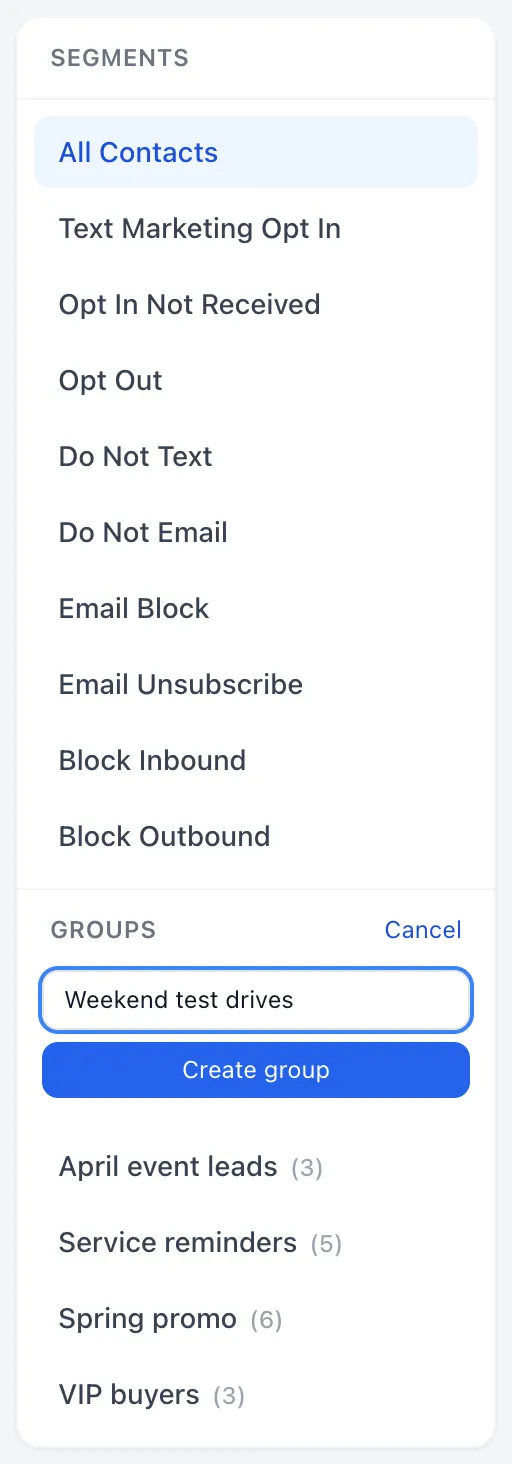
- In the left column, find the Groups heading and choose + New.
- Type a name into Group name.
- Choose Create group, or press Enter.
The group appears in the list underneath, in alphabetical order, with the number of people in it in brackets after the name. A brand new group shows nothing there until you add someone. Two groups can’t share a name — try it and you get A group with that name already exists.
Put a contact in a group
- Open the contact — search for them on the Contacts page and choose their row.
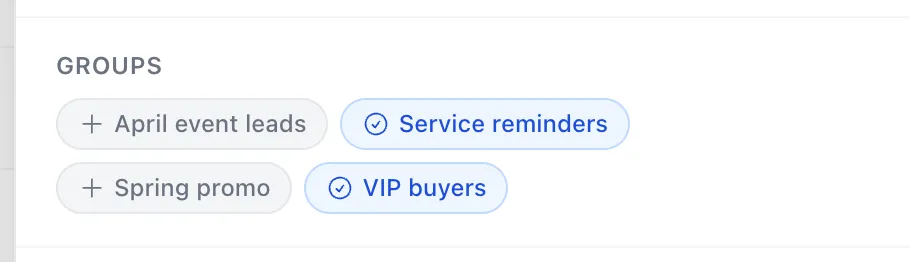
- Scroll the panel to Groups. Every group your dealership has is listed as a pill.
- Choose a pill to add this person to that group. It turns blue with a tick.
- Choose it again to take them out.
There is no save step. Each choice takes effect straight away, and the member count in the left column moves with it.
You can do the same thing without leaving a conversation: in the panel on the right of a chat, find Groups and choose Manage. That opens the same list with a Search groups… box at the top, useful once you have more groups than fit on a screen. Each row says Add, or Added once the person is in.
See who is in a group
Choose the group’s name in the left column. The list to the right shows its members, and the count above the list is the size of the group. Search and paging work the same as anywhere else in the directory.
Rename or delete a group
Both are limited to supervisors and dealership admins.
- Point at the group’s name in the left column. Edit and Del appear on the right of the row.
- Edit turns the name into a box you can type in. Change it and choose Save.
- Del removes the group.
Del does not ask you to confirm, and there is no undo. Deleting a group deletes the list only — the contacts who were in it stay in the directory, untouched.
Good to know
- A group is a list of people, not a filter. Nobody joins a group on their own; someone has to put them there. If you want a list that keeps itself current — everyone who has opted in to texts, for instance — that is what the Segments above are for.
- Groups are the usual way to pick who a text campaign goes to. If your dealership has text campaigns turned on, a Bulk SMS button sits at the top right of the Contacts page, and a group is one of the things you can aim it at. A campaign only ever goes to the people in the group who have opted in to texts, so the number sent is often smaller than the number on the group.
- A contact can be in as many groups as you like, and there is no limit on how many groups you create. A name can run to 80 characters.
- The number in brackets still counts anyone who has since been deleted from the directory, so a group can read (12) while only 10 people appear when you open it. The 10 contacts count above the list is the accurate one.