
Signing in
How to reach the dashboard, and what to do with the 6-digit code if your dealership uses one.
Dealership Chat runs in your browser at app.pixelmotionchat.com. Your manager creates your account, so there is nothing to sign up for — you just need the email address they used and the password they gave you.
Sign in
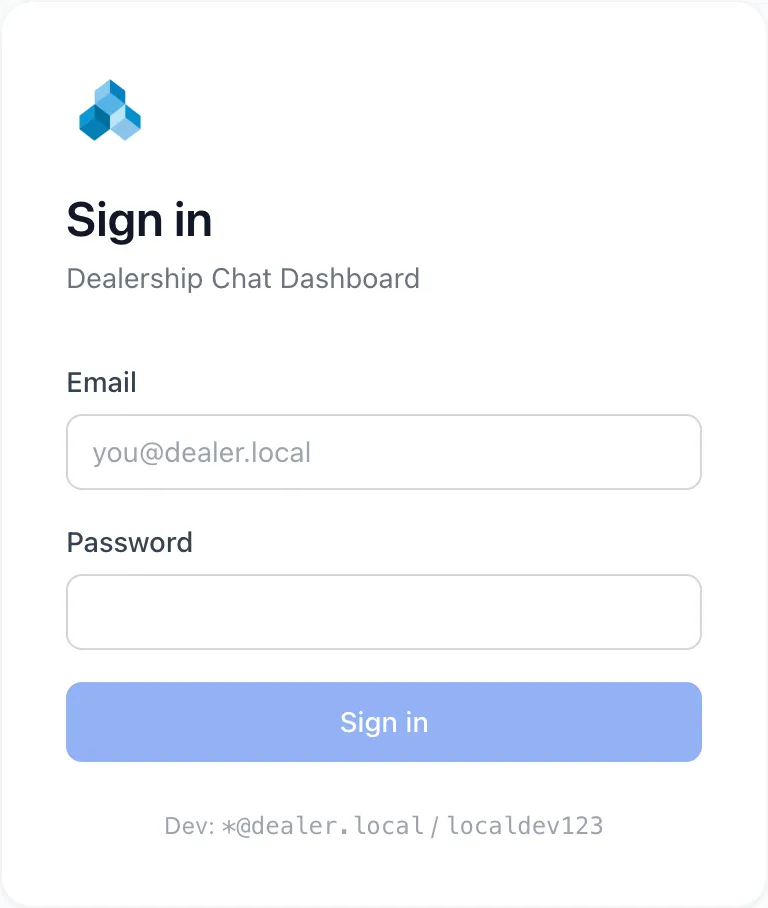
- Go to app.pixelmotionchat.com. You should see a card headed Sign in.
- Type your work email in Email and your password in Password.
- Choose Sign in.
If your dealership does not use verification codes, you land straight on Team Chats and you are ready to work. Otherwise the card changes to ask for a code — carry on below.
Enter your verification code
Most dealerships add a second step so a stolen password isn’t enough to read customer conversations. When that is on, signing in sends you a 6-digit code — by text message, by email, or both, depending on what you picked under Profile → Security.
- Find the code in your texts or your inbox. The message tells you it expires in 10 minutes.
- Type the six digits into Verification code. Nothing else needs filling in.
- Choose Verify.
You land on Team Chats, the same as anyone signing in without a code.
Signed in as the wrong person, or someone else left their email in the box? Choose Use a different account to clear the form and start over.
Good to know
- The code is good for 10 minutes and for one sign-in only. Asking for a new one by signing in again always works — the newest code is the only one that counts, so an older text is already dead.
- After five wrong codes the attempt is locked and you have to sign in again from the start. This is deliberate: it stops someone guessing their way in.
- If you never gave the app a phone number, or your number was never confirmed, the code comes by email instead. Nobody gets locked out for missing a phone number.
- Codes are per person, not per dealership. Two people signing in at the same time each get their own.
- You stay signed in on that browser until you sign out, so you don’t need a fresh code every morning. On a shared computer on the sales floor, sign out when you walk away — the next person would otherwise be sitting in your conversations.
If something goes wrong
| What you see | What it means | What to do |
|---|---|---|
| Invalid email or password | The email or the password doesn’t match an account. | Retype the password. If it still fails, ask your manager to reset it — they can do that from the team page. |
| Invalid or expired code | The code was mistyped, or more than 10 minutes have passed. | Check the digits. If time ran out, sign in again to get a fresh code. |
| Too many attempts. Please sign in again. | Five wrong codes in a row. | Start over with your email and password. A new code is sent. |
| No code arrives | The code went to the other channel, or your number was never confirmed. | Check both your texts and your email, including spam. Then check Profile → Security to see which one you’re set up for. |
| The page won’t load at all | Usually the network, not your account. | Try another site to confirm you’re online. If everything else works and this doesn’t, tell your manager — the whole team is likely affected. |