
My Chats and Team Chats
What the two inbox lists hold, how the filters narrow them down, and how to find one old conversation fast.
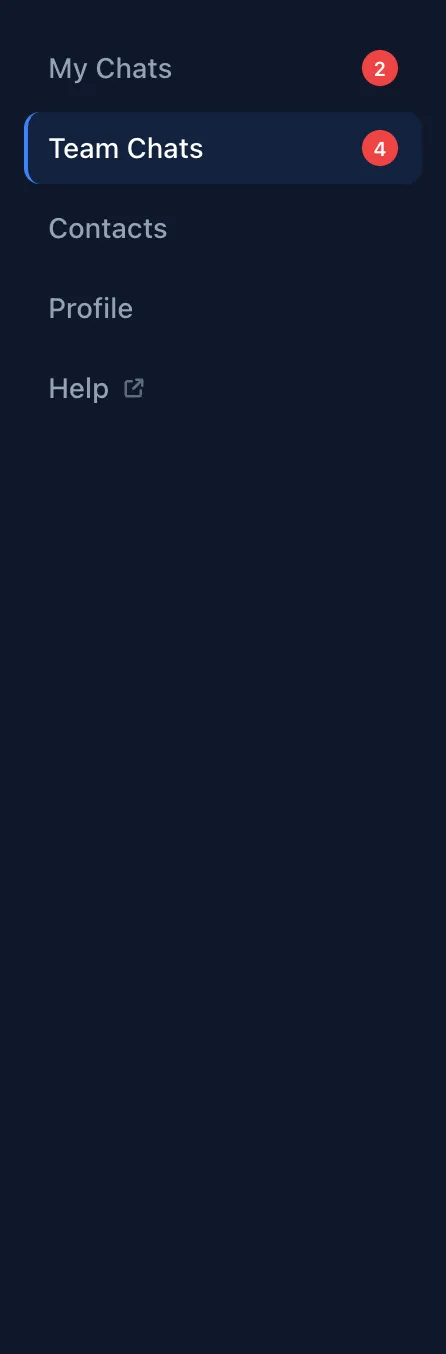
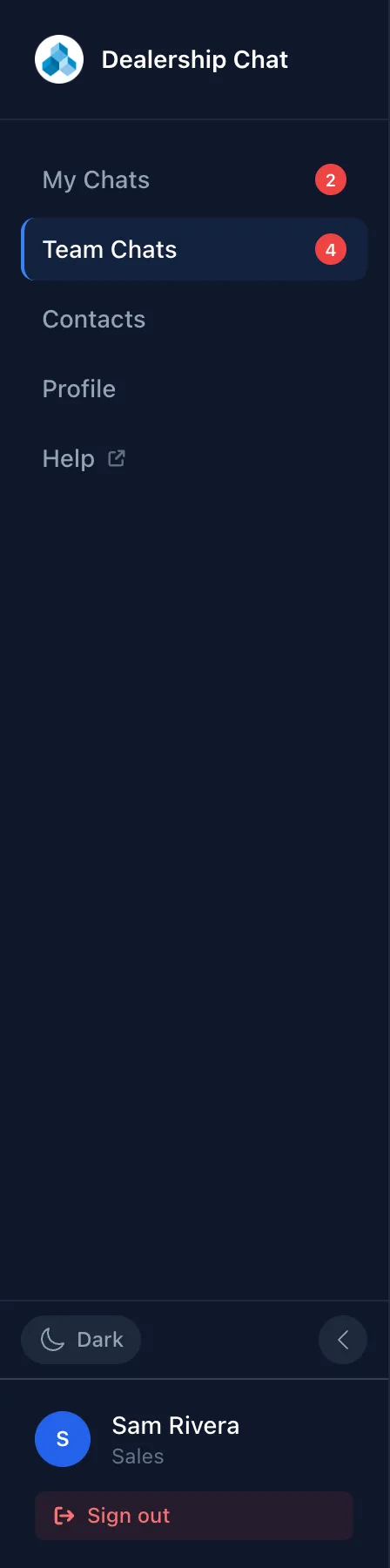
The sidebar has two ways into the same inbox. My Chats shows only the conversations assigned to you. Team Chats shows everything you are allowed to see: your department if you work in Sales, Service or Parts, and the whole dealership if you are a manager or an admin. Conversations nobody has picked up yet live in Team Chats until someone claims them.
The red number next to each sidebar entry counts conversations with something unread in them, not individual messages. It stops counting at 99+.
Narrow the list down
The row of pills under the list heading filters by state. Three are always visible:
- Open — everything still going, including conversations waiting on another department. This is what you get by default.
- Unassigned — nobody owns these yet.
- Needs Reply — the last message did not come from the person the conversation is assigned to, so someone owes the customer an answer. Anything unassigned counts, and so does a conversation where the assigned agent’s own last reply is more than five minutes old.
Choose More for the rest: Trans. (handed to another department and not answered yet), Closed, Archived, and All. Less folds them away again.
The Channel row below filters by where the conversation is happening: All, Web, SMS, and — in Team Chats only — Bot, which is people still talking to RyderBot on your website.
Read the list
Each row carries the customer’s name, the subject underneath, and the first line of the last message in italics. The pills along the bottom tell you the rest:
| What you see | What it means |
|---|---|
| Green Open, amber Trans., grey Closed / Arch. | The state of the conversation. |
| Sales, Service, Parts | Which department it belongs to. |
| Blue SMS | The customer is texting, not on the website. |
| Purple Bot | RyderBot is still handling it — no human has taken over. |
| A pulsing green dot | Something happened in the last five minutes. |
| A red number, and the row in bold with a blue edge | Unread messages waiting for you. |
| An amber dot and Customer came back | A closed conversation the customer replied to. |
| Hidden | Someone chose Hide contact details on this row, so the customer’s name is masked on this screen. |
Opening a conversation clears its unread count. Scroll to the bottom of the list and the next batch loads by itself.
Find an older conversation
The search box at the top of every page searches contacts, conversations and the words inside messages at the same time.
- Type at least two characters into Search contacts, chats, messages….
- Results are grouped under Contacts, My Chats and Team Chats, six per group.
- Choose a result. The conversation opens on the Team Chats page, whatever you were looking at before.
Escape clears the box.
Start a conversation yourself
The + button at the top right of the list opens a short menu.
- New thread creates an empty conversation in the department you pick and assigns it to you. Nobody is contacted and no customer is attached — it is a placeholder in the queue, not a way to message someone.
- Bulk SMS is one message to a whole group of contacts. It only appears for managers and admins at dealerships where text campaigns are switched on, and it has its own guide under Text campaigns.
New thread is hidden while the Channel filter is set to SMS or Bot — those conversations can only be started by the customer.
Good to know
- The list reorders itself as messages arrive; the newest activity goes to the top.
- Collapsing the list with the arrow next to the heading gives the conversation more room. The unread count stays visible on the collapsed strip.
- A conversation transferred to another department drops out of your list. That is deliberate — it is their queue now.
- Hide contact details masks a name on your own screen only, and only until you reload the page. It changes nothing for the rest of the team and nothing in the customer’s record.