
Asking RyderBot for help with a reply
Get a draft written for you, look up a vehicle question, or let RyderBot answer a conversation on its own.
RyderBot is the assistant that already knows your inventory and your dealership’s details. Inside a live conversation it can write the next reply for you, answer a question you have, or take over the back-and-forth entirely while you watch.
Get a draft
- Choose Ask Bot above the Send button.
- Either:
- Type what you want to know in Ask RyderBot a question (optional)… and choose Ask — good for “do we have a 2022 Tacoma in blue?”
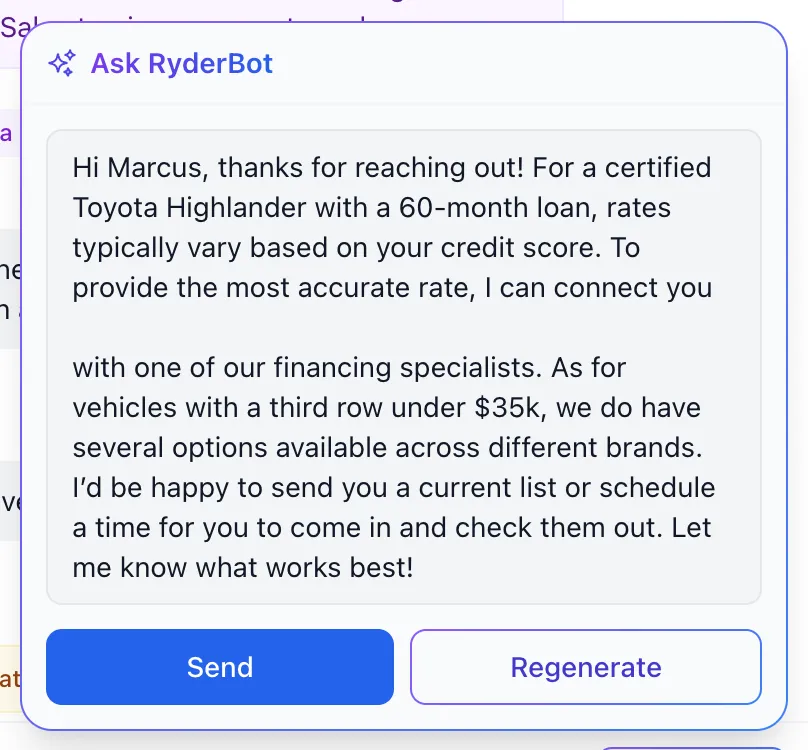
- Or choose Draft a reply with the box empty, and RyderBot reads the conversation and writes the next message for you.
- Read what comes back. Matching vehicles appear above it as cards you can scroll through.
- Choose Send to send it as written, or Regenerate for another attempt. Escape or a click outside closes the panel and throws the draft away.
Nothing reaches the customer until you choose Send. The reply then appears in the transcript in purple, from Assistant rather than under your name, and it goes out by text if that is how the conversation is running.
If RyderBot notices something is missing — usually a name or an email — it offers a button like Send form: Customer Info. Choosing it sends that form to the customer instead of a message.
Let RyderBot answer on its own
The RyderBot switch at the top right of the conversation hands the conversation over. While it is on, every message the customer sends gets an automatic reply, without you touching anything. Turn it off and the conversation is yours again.
It is off on every conversation until someone turns it on, and it is per conversation — not a setting for your whole inbox. Only the person the conversation is assigned to, or a manager, sees the switch.

Good to know
- A draft is written from the conversation you have open, so the more the customer has said, the better the draft.
- Your question in Ask is never sent to the customer. Only the reply you approve is.
- A question can be up to 500 characters and a reply up to 4,000.
- The vehicle cards are there for you to check the draft against. They are not sent as pictures.
- Leave the switch on when you step away from a busy conversation, and check what was said when you come back — the whole exchange is in the transcript.
If something goes wrong
| What you see | What it means | What to do |
|---|---|---|
| Failed to generate a reply | RyderBot could not answer this one. | Choose Regenerate, or ask the question in fewer words. |
| Could not reach the chatbot service | The assistant is unreachable right now. | Write the reply yourself and try again later. If it lasts, tell your manager. |
| Failed to send | The draft was fine but sending it failed. | The draft is still on screen — choose Send again. |
| The RyderBot switch isn’t there | The conversation is closed, or it belongs to someone else. | Claim it, or ask a manager. |
| The customer got a reply you didn’t write | The RyderBot switch is on for that conversation. | Turn it off if you want to take over. |