
Finding a contact
Search the directory, filter it by text-message status, and open a customer's record.
Every customer who has reached your dealership — through the chat on your website, the Text Us! button, or a text message to your dealership’s number — has a record under Contacts in the left sidebar. The whole team can open it, and everyone sees the same directory. Contacts are not split by department the way conversations are.
Search for someone
- Choose Contacts in the left sidebar.
- Type into the Search by name, phone, or email… box above the list.
- The list narrows on its own a moment after you stop typing. Nothing happens until you
have typed two characters, so
Joworks andJdoes not. - Choose the row you want. The record slides in from the right.
When nothing matches you get No contacts match your search. Clear the box to get the whole list back.
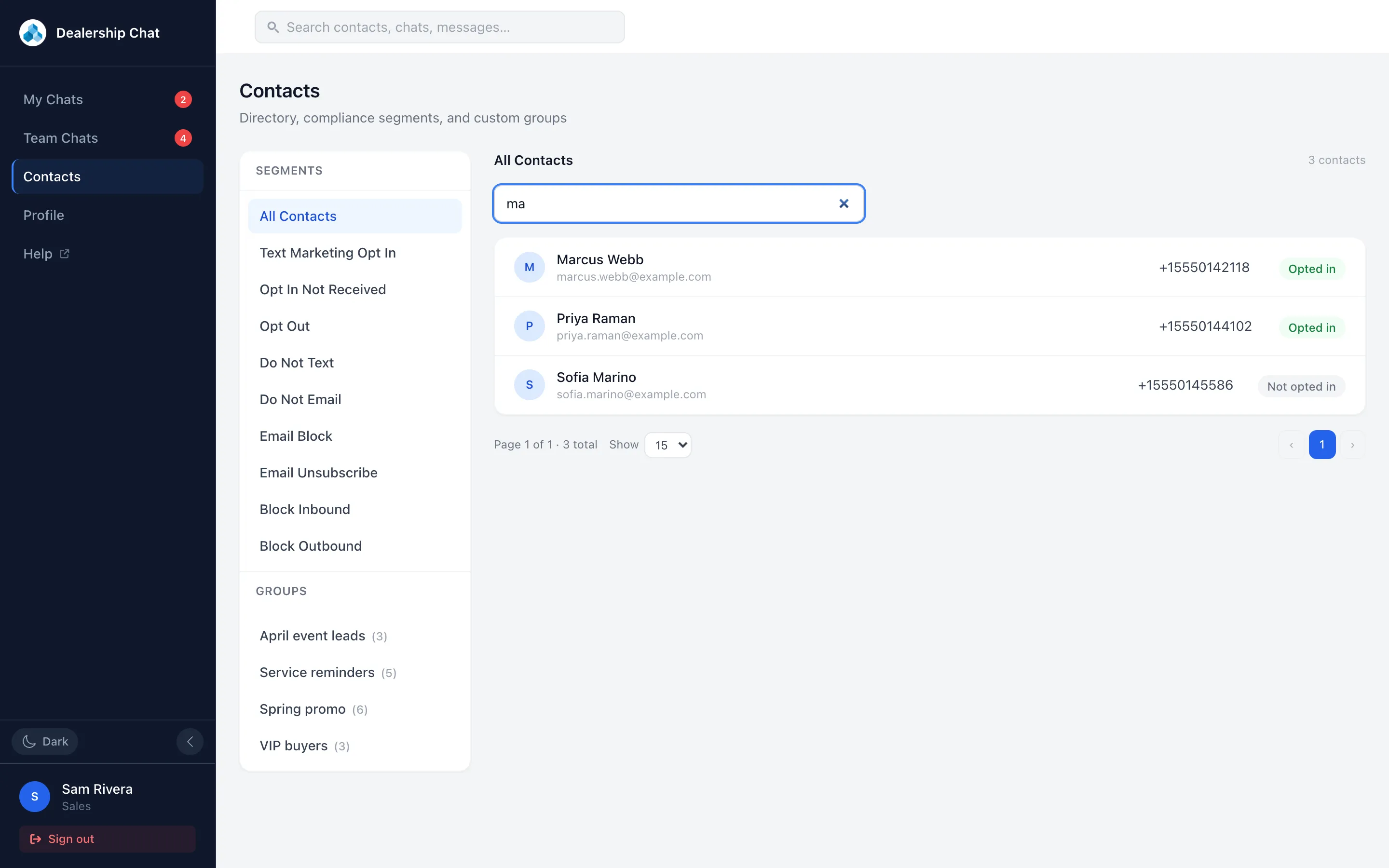
Filter by text-message status
The Segments list on the left is a set of ready-made views of the same directory. They are worked out live from each contact’s settings, so a contact moves between them the moment you change a switch on their record — there is no list to build or keep up to date.
| Segment | Who is in it |
|---|---|
| All Contacts | Everyone in the directory. |
| Text Marketing Opt In | People who have agreed to receive marketing texts. |
| Opt In Not Received | People who have neither agreed nor refused. Either nobody has asked them yet, or they never answered. |
| Opt Out | People who told you to stop texting them. |
| Do Not Text | People with Text Allowed switched off. |
| Do Not Email | People with Email Allowed switched off. |
| Email Block | People with Email Blocked switched on, usually because mail to them keeps bouncing. |
| Email Unsubscribe | People who unsubscribed from your emails. |
| Block Inbound | People whose incoming messages you have chosen to ignore. |
| Block Outbound | People you have chosen never to send anything to. |
Choose a segment and the count above the list — 12 contacts, and so on — updates to match. What each switch means, and when to touch it, is covered in Text-message permission and opt-outs.
Search works inside the segment you are looking at. Pick Opt Out, type a name, and you are searching only the people who opted out.
Work through a long list
The list shows 15 contacts at a time. Underneath it you get Page 1 of 4 · 52 total and the arrows to move between pages.
- Choose a page number, or ‹ and ›, to move around.
- The Show box next to the page count changes how many rows you see at once: 10, 15 or 25.
Changing the segment, or typing a new search, puts you back on page 1.
Good to know
- The search box at the top of every page — Search contacts, chats, messages… — finds contacts too, up to six of them. Choosing one opens that person’s most recent conversation, not their contact record. A contact who has never had a conversation is shown with No threads and choosing them does nothing. To reach the record itself, go through Contacts.
- A dash in the phone column means there is no number on file. That contact cannot be texted until someone adds one — see Keeping a contact’s details up to date.
- The coloured pill on each row is a shortcut: Opted in in green, Opt-out in red, Not opted in in grey.