
Transferring a chat to another department
Send a conversation to Sales, Service or Parts — with or without naming the person who should take it.
Transfer a conversation when it belongs to a different department: a service customer who actually wants a trade-in quote, a parts question that turns into a repair booking. The conversation, its whole history and the customer’s details all move together.
Transfer
- Open the conversation.
- Choose the three-dot button at the top right of the conversation, next to Video call.
- Choose Transfer chat.
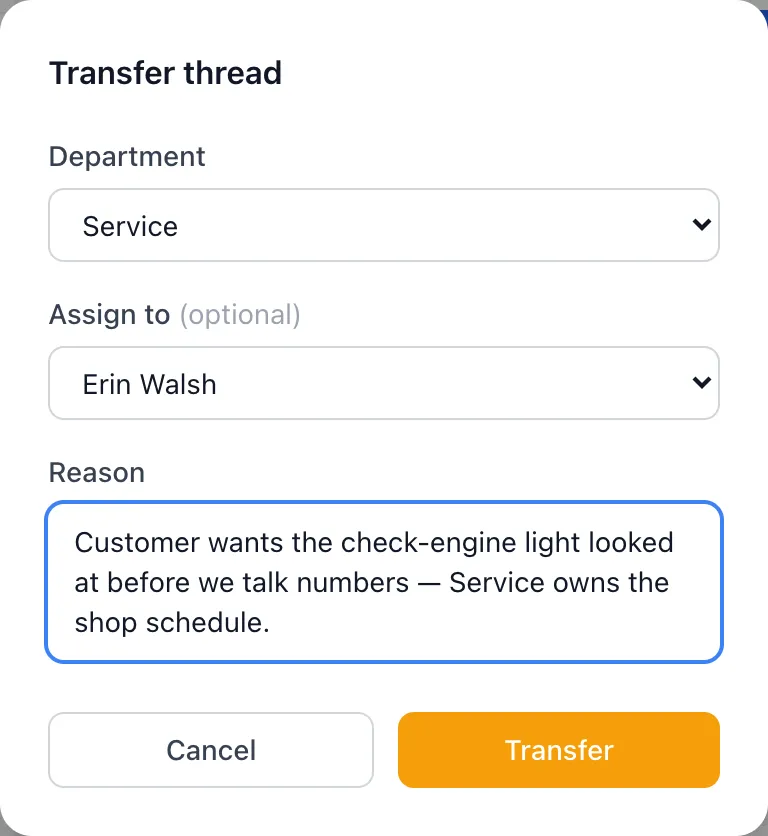
- Pick the Department it should go to.
- Optionally pick a person under Assign to. Leaving it on — No specific person — drops the conversation into that department’s shared pool for anyone to claim.
- Type why in Reason. This one is required — the transfer button stays grayed out until you write something.
- Choose Transfer.
The conversation’s tag changes to amber TRANSFERRED and it leaves your list. That is the point: it is the other department’s queue now.
What the other department sees
The conversation appears in their Team Chats under the Open filter, or in one person’s My Chats if you named someone. It carries an amber Trans. tag until somebody sends the next message, at which point it counts as a normal open conversation again.
Nobody is alerted. There is no push notification and no email for a transfer, so if it is urgent, tell the department yourself.
Good to know
- Only conversations that are open or already transferred can be transferred. Closed ones can’t.
- The Assign to list shows people in the department you picked. Choosing a person from a different department switches the Department to match theirs.
- The reason you type is recorded, but it is not shown anywhere on screen — treat it as a note for the record, not as a message to the next agent. Put anything they need to know in the conversation itself before you transfer.
- The customer sees nothing. No message goes out, and they carry on in the same chat.
- If you transfer to your own department and the same person it is already assigned to, you get Please select a different agent or department.
If something goes wrong
| What you see | What it means | What to do |
|---|---|---|
| Transfer failed | The conversation moved or was deleted while you had it open. | Reload the page and look for it under All. |
| The conversation is still in your list | The screen has not caught up. | Switch to another page and back. |
| The other department says they can’t see it | Their list has not refreshed since the transfer. | Ask them to switch between My Chats and Team Chats, or reload. |
| Transfer stays grayed out | Reason is empty. | Write a short reason — one line is enough. |