
Files on a contact
Attach a trade appraisal, a quote or a signed form to a customer's record, and get it back later.
Every contact record has a Files section for the paperwork that belongs to that customer rather than to one conversation — a trade-in appraisal, a finance quote, a photo of a damaged part. Anyone on the team can add a file and anyone on the team can open one, so this is the right home for something a colleague will need next week and the wrong home for anything you would not want the whole floor to read.
Attach a file
- Go to Contacts and choose the person’s row.
- Scroll the panel to Files.
- Choose + Upload file and pick the file from your computer.
The button reads Uploading… while it works, then the file appears in the list with its size, who added it and the date. Any kind of file is accepted, up to 25 MB each.
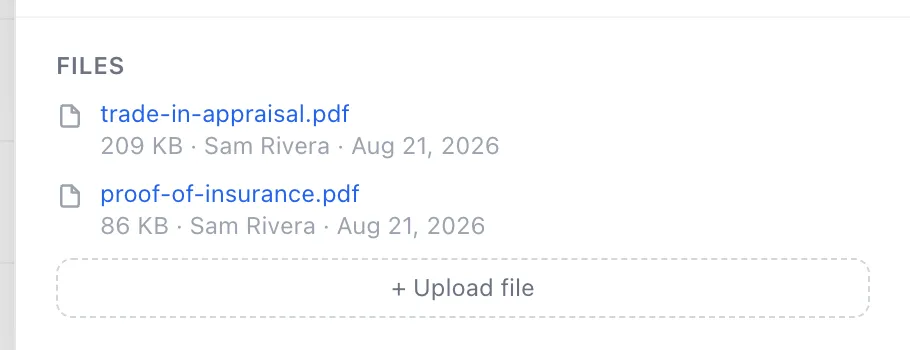
The same section is on the panel to the right of any conversation: choose Files there and you get the same list, so you can attach something without leaving the chat.
Open a file
Choose the file’s name. It downloads to your computer, and the name shows Downloading… while that happens.
Files are not on the open internet. Opening one needs a signed-in account at your dealership, which is why the file downloads rather than opening from a link you could forward.
Remove a file
Point at the file and a small × appears on the right of the row. Choose it and the file is gone.
There is no confirmation and no undo, and the file is erased rather than hidden, so be sure before you choose it. You can remove any file you uploaded yourself; supervisors and dealership admins can remove anyone’s. The × shows on every file whether or not you are allowed to use it — if you are not, choosing it leaves the file where it is.
Good to know
- Files here are attached to the customer, not to a conversation. They stay on the record through every future conversation that customer has with you.
- Sending a file to the customer is a different job — that is Attach file in the message box of the conversation itself. Adding a file here shows it to your colleagues and nobody else.
- Deleting a contact leaves their files in place. If the customer comes back, their record and everything on it comes back too.
If something goes wrong
| What you see | What it means | What to do |
|---|---|---|
| A red message under the file list after uploading | The file was refused. Almost always because it is over 25 MB. | Check the size. A phone video will usually be too big — trim it, or take a screenshot of the part that matters. |
| File is empty | The file has nothing in it, normally a failed export or a bad download. | Open it on your own computer first to check it is really there. |
| Download failed | The file didn’t come through. | Try again. If it keeps failing, the file may have been removed by someone else while your panel was open — close the contact and open it again to see the current list. |
| The × does nothing and the file stays | Someone else uploaded it and you are not a supervisor or an admin, so you are not allowed to remove it. The button is there either way and says nothing when it refuses. | Ask the person who uploaded it, or a manager. |