
Closing a conversation
Mark a chat resolved, ask for a review on the way out, and know what it takes to bring it back.
Closing a conversation takes it out of the open queue. The customer is not locked out — a reply from them reopens it and puts it back at the top of the list.
You can close a conversation assigned to you. Managers and admins can close any of them.
Mark it resolved
- Choose the three-dot button at the top right of the conversation.
- Choose Mark as resolved. A window opens headed Mark as resolved, with the reminder This closes the conversation. The customer can still reply to reopen it.
- Write a Closing message if you want the last word — “Thanks for chatting with us today!” It is optional.
- Tick a platform under Ask for a review to send your review link as well.
- Choose Mark as resolved.
The messages go out first, then the conversation closes. The message box is replaced by This thread is closed.
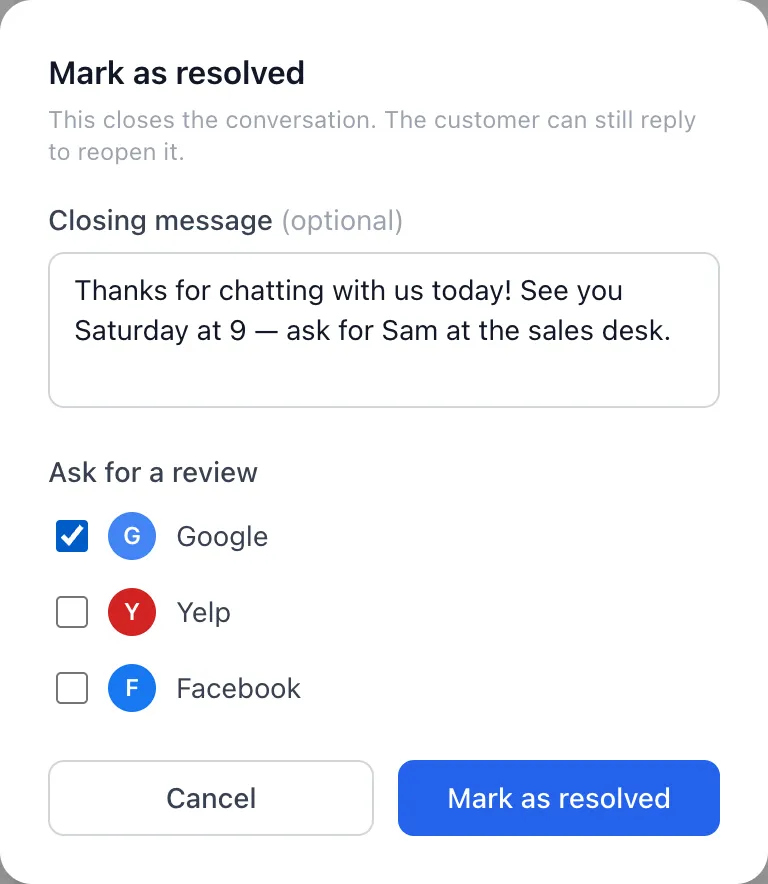
Ask for a review
The Ask for a review list shows Google, Yelp and Facebook, and a platform only appears once an admin has saved its review link under Settings → Dealer Settings. Tick one and the dealership’s review message goes out as a separate message with the link filled in.
You can send the same request without closing anything: the star button in the row under the message box, Request a review, drops the finished message into the box for you to read before sending.
Close without opening the conversation
Managers and admins can close from the list itself:
- The three-dot button on a row, then Mark closed.
- Or tick several rows and choose Close in the blue bar that appears.
Archive in that same bar goes a step further: archived conversations only show up under the Archived filter. Use it to clear out old noise.
Good to know
- Nobody on staff can reopen a closed conversation — not the person who closed it, not a manager. Only the customer writing again brings it back, and when they do the row turns amber and reads Customer came back.
- A closed conversation takes no messages of any kind, so a saved reply, a file or a form will not go through until the customer reopens it.
- Closing does not tell the customer anything by itself. If you want them to know, write the closing message.
- Keep a copy before you close if you need one: the row’s three-dot menu has Download PDF, Download (.txt) and Download (.csv). Any staff member can do this, on any conversation they can see.
- Delete conversation is admins only, it asks for confirmation, and it cannot be undone. Closing or archiving is almost always what you actually want.
If something goes wrong
| What you see | What it means | What to do |
|---|---|---|
| Mark as resolved is missing from the menu | The conversation is assigned to someone else, or it is already closed. | Claim it first, or ask a manager to close it. |
| Failed to resolve thread | The closing message did not send, so nothing was closed. | Check your connection and try again. The conversation stays open until it works. |
| Send timed out — check your connection and try again | Same as above, while sending the closing message or the review request. | Try again; if it keeps failing, close it from the list’s three-dot menu without a message. |
| The review platform you want isn’t listed | No review link has been saved for it. | Ask an admin to add it under Settings → Dealer Settings. |
| A closed conversation is back at the top of the list | The customer replied. | It is open again and needs an answer. |