
Sending a form to a customer
Ask for a name, an email or a text-message permission with a short form, and let the answers update the contact record for you.
A form is a short set of questions you push into the conversation. The customer fills it in where they are chatting, and what they type lands on their contact record without anyone retyping it. It is the quickest fix for a conversation where the customer is showing up as “Web Visitor 4821” with no real email.
Before you start
Forms only display for customers who came through RyderBot and asked to talk to a person. On a text-message conversation, or in the chat button embedded on your own website, the customer sees the words Requested: Customer Info and no form — so check how the conversation started before sending one. The SMS tag on the conversation and the strip above the message box tell you.
Send one
- Choose the form button in the row under the message box. Hovering it shows Send a form.
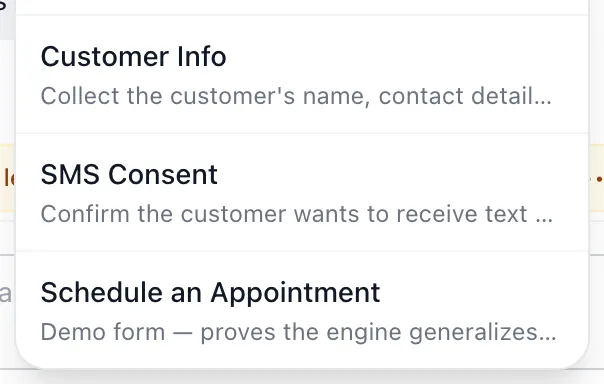
- Pick from the list under Send a form:
- Customer Info — full name, email, phone, ZIP code, and a text-me box.
- SMS Consent — phone number and a text-me box, for a customer you already know.
- Schedule an Appointment — name, date, time and contact number. This one is a demonstration; the answers are recorded but no booking is made anywhere.
- It goes out immediately. You don’t press Send afterwards.
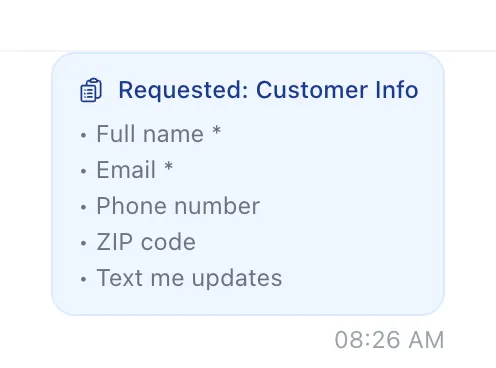
Your side of the transcript shows a card reading Requested: Customer Info and lists the fields you asked for, with an asterisk next to the ones the customer has to fill in.
When the answer comes back
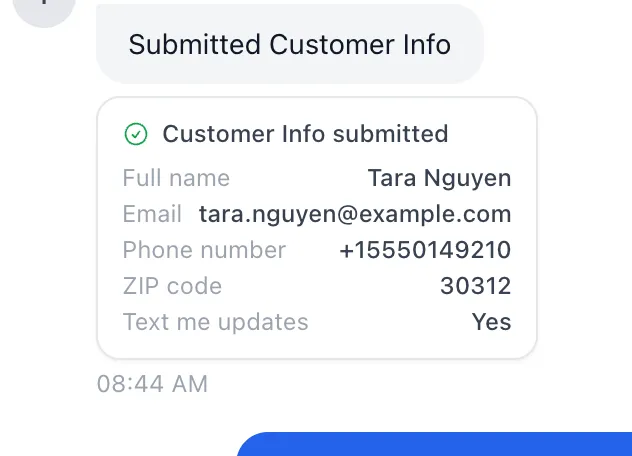
The reply appears as a card in the transcript headed Customer Info submitted, with each answer next to its label. At the same moment:
- The name, email and phone go onto the customer’s record, and the Contact column on the right updates itself.
- If the customer already existed under that email, the conversation is joined to that record instead of creating a second one.
- A ticked text-me box records their permission to text them, along with the exact wording they agreed to. You can see it under Contact → Opt-in & Compliance.
Good to know
- The customer has to give a phone number and a text permission together — if they type a number without ticking the box, their form won’t go through.
- Nothing is overwritten silently: if they submit a different email, the conversation moves to the record that email belongs to.
- You can send the same form again if the first one is ignored. Each submission is kept.
- Schedule an Appointment does not put anything in a calendar. Book it the way you normally would.
If something goes wrong
| What you see | What it means | What to do |
|---|---|---|
| The customer says they see no form, only text | They are on text messages or on a chat widget that can’t show forms. | Ask the questions in the conversation and fill in Contact → Edit yourself. |
| A warning bubble about an invalid submission | The answers failed a check — usually a phone number with no text permission. | Ask the customer to submit again and tick the box, or take the details by hand. |
| The card arrives but the Contact column looks unchanged | The panel is showing the previous version. | Choose another conversation and come back. |
| Nothing happens when you pick a form | The conversation is closed, or the connection dropped. | A closed conversation takes no messages of any kind. Reload and check the state tag in the header. |