
Using a saved reply
Drop a ready-made message into the box, fill in the blanks, and check it before it goes.
Saved replies are the messages your dealership writes once and everyone reuses — opening hours, a finance explainer, a “sorry we missed you” note. They can carry details that fill themselves in, like the customer’s name or your review link.
Insert one
- Choose the lightning-bolt button in the row under the message box. Hovering it shows Canned responses.
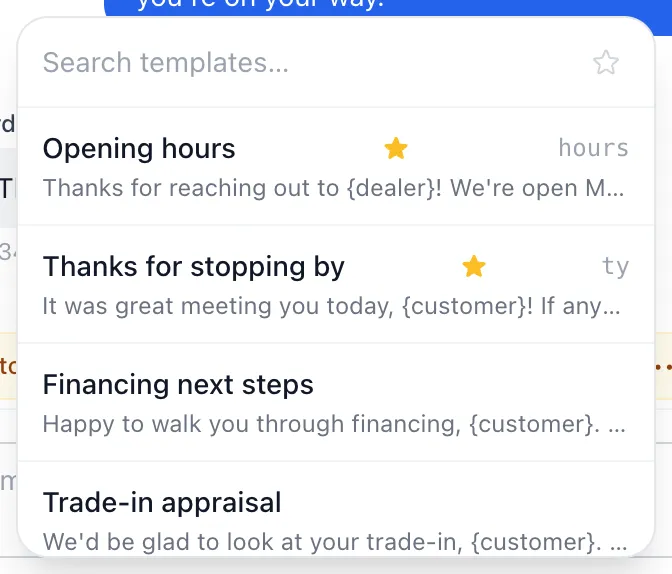
- Start typing in Search templates… to narrow the list. It searches titles and the text itself.
- Choose the one you want.
The text lands in the message box. Nothing is sent yet — read it, edit it, add to it, then press Enter or choose Send as usual.
Show only the ones you use
The star at the right of the search box switches the list to favorites only, and the search box changes to Search favorites…. Choose the star again for the full list. A template marked as a favorite is starred in the list. Some templates also show a short code on the right of the row — that is a label to recognize them by; typing it in the message box does nothing.
Fill in the blanks
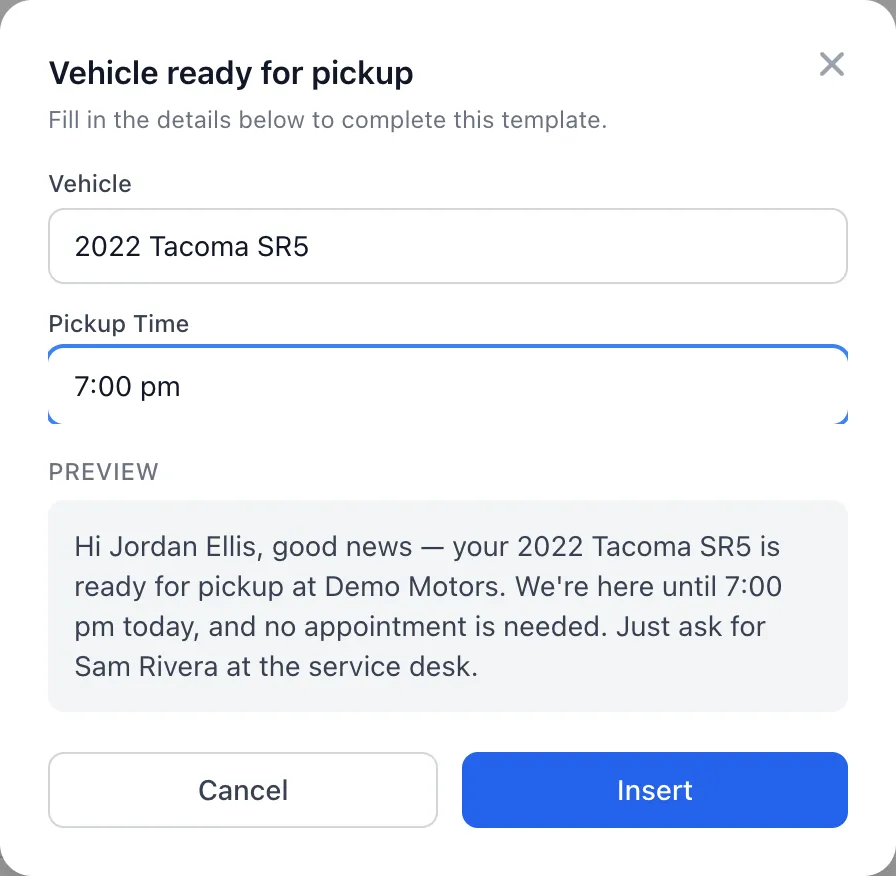
Some templates need a detail only you know — a price, a date, a vehicle. Choosing one of those opens a small window instead of inserting straight away.
- Fill in each field.
- Watch Preview at the bottom. It shows the finished message as the customer will receive it, updating as you type.
- Choose Insert.
Details the app already knows — the customer’s name, the dealership’s name, your review links — are filled in for you and never appear as a field to complete.
Good to know
- A detail nobody has set is left out of the message rather than sent as a gap in the text. When that happens the window warns you: No value set for … and names it. Ask an admin to set it under Settings → Dealer Settings.
- Inserting adds to whatever is already in the box, so you can stack a greeting and a saved reply.
- Every agent can use saved replies. Writing and editing them is a manager’s job, under Templates in the sidebar.
- The Search templates… box only searches saved replies. To find an old conversation, use the search box at the top of the page instead.
If something goes wrong
| What you see | What it means | What to do |
|---|---|---|
| No templates found | Nothing matches what you typed. | Clear the search. If the list is empty altogether, nobody has written any yet. |
| No favorites yet | The favorites filter is on and nothing is starred. | Choose the star again to see everything. |
| The message still shows words in curly brackets | The saved reply could not be completed, so the raw template was inserted. | Edit the text by hand before sending, and tell a manager which template it was. |
| Insert stays grayed out | One of the fields is still empty. | Every field in the window has to be filled in. |