
Sending files and photos
Attach a photo or a PDF to a reply, and open what the customer sends you.
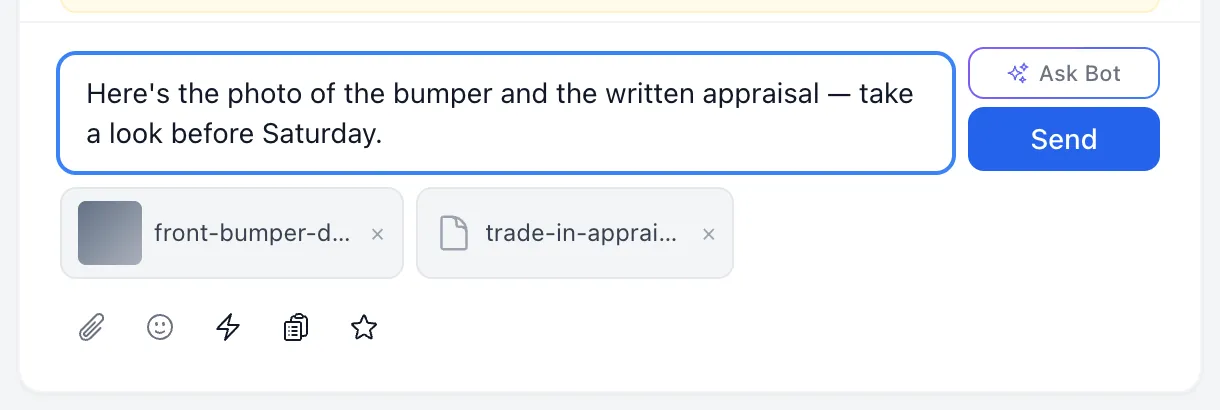
You can send photos and PDFs inside a conversation — a picture of the damaged part, a quote, a finance form. Files ride along with a message, so they arrive when you press Send.
Attach a file
- Choose the paperclip at the left of the row under the message box. Hovering it shows Attach file.
- Pick one or more files. Each one appears as a small chip above the toolbar, with a thumbnail for photos.
- Wait for the chip to settle. While it is uploading the chip shows a faint spinner; you can keep typing.
- Write a message if you want one, then press Enter or choose Send.
The × on a chip removes that file before it is sent. Nothing reaches the customer until the message goes out.
What you can send
| What works | |
|---|---|
| Photos | JPG, PNG, GIF, WebP, HEIC and HEIF |
| Documents | PDF, and nothing else |
| Size | Up to 25 MB per file |
| How many | As many as you like on one message |
Anything else is refused as soon as you pick it — the chip turns red and says the type is not allowed.
Open what the customer sent
Photos appear in the transcript at a readable size; choose one to open it full screen. PDFs appear as a chip with the file name and size — choosing it opens a preview window rather than downloading. Anything else downloads when you choose it.
Files stay in the transcript. The Files row in the Contact column on the right is a separate place for documents kept on the customer’s record, such as a driving licence — it does not collect what was sent in chat.
Good to know
- Picking a file starts the upload right away, but nothing reaches the customer until you send the message it is attached to.
- Text-message conversations are the exception worth knowing: your words are texted to the customer, but attachments are not. Use a file only where the customer is on the website chat.
- A file link works for anyone who has it, so treat the link the way you would treat the document itself.
If something goes wrong
| What you see | What it means | What to do |
|---|---|---|
| File type not allowed: … | The file isn’t a photo or a PDF. | Save it as a PDF, or take a screenshot and send that. |
| File exceeds 15 MB limit | The file is over the size cap. The cap is actually 25 MB — the wording of this message is out of date. | Send a smaller version, or split a long PDF. |
| Upload failed — click × to remove | The upload didn’t finish. | Remove the chip, check your connection, and attach it again. |
| The chip never stops spinning | The upload is stuck. | Remove it and try once more. If it happens on every file, tell your manager. |
| Send stays grayed out | Nothing is written and no file has finished uploading yet. | Wait for the chip to finish, or type a message. |